
Sharing PDF documents is common in business, education, and everyday work. However, when you distribute a document, you may want readers to know who created it, whether it is confidential, or whether it is still a draft. Adding a watermark is a simple way to communicate this information directly on the pages.
A PDF watermark is text placed over a document’s content. It can display a company name, copyright notice, ownership information, or labels such as “CONFIDENTIAL” and “DRAFT”.
With the free OffSecPath PDF Watermark tool, you can add customized text watermarks to your PDF files directly in your browser. Adjust the font size, color, opacity, and placement, then save the watermarked document without uploading your file to a remote server.
What Is a PDF Watermark?
A PDF watermark is text or an image placed over or behind a document’s content to communicate information about the document.
Watermarks commonly identify ownership, indicate document status, or discourage unauthorized reuse.
For example, you might add:
- CONFIDENTIAL
- DRAFT
- SAMPLE
- DO NOT DISTRIBUTE
- © Your Company Name
- Your personal or business name
Watermarks can appear in different positions and styles. A single watermark may appear in one area of a page, while a tiled watermark repeats diagonally across the page.
The right placement depends on the document’s purpose and how prominently you want the watermark to appear.
Why Add a Watermark to a PDF?
Watermarks provide a convenient way to identify documents and communicate important information when sharing files.
Here are some common reasons to add one.
1. Identify Document Ownership
You can add your name, business name, or copyright notice to indicate who created or owns a document.
This is particularly useful when sharing reports, presentations, designs, and other original work.
2. Mark Confidential Documents
A CONFIDENTIAL watermark makes a document’s intended handling clear to anyone who opens it.
Businesses may use this label on internal reports, financial documents, proposals, and sensitive drafts.
3. Identify Draft Documents
When sharing a document that is not finalized, a DRAFT watermark helps prevent confusion.
It communicates that the document may still change and should not be treated as a final version.
4. Discourage Unauthorized Reuse
A visible watermark can make unauthorized reuse less attractive by identifying the document’s source or intended purpose.
However, a watermark is not a complete security measure. It does not prevent someone from copying, editing, or removing document content.
5. Add Branding to Documents
Businesses, designers, and content creators can use watermarks to display their brand or company name on shared PDFs.
This helps maintain consistent document identification when distributing files.
How to Add a Watermark to a PDF Online
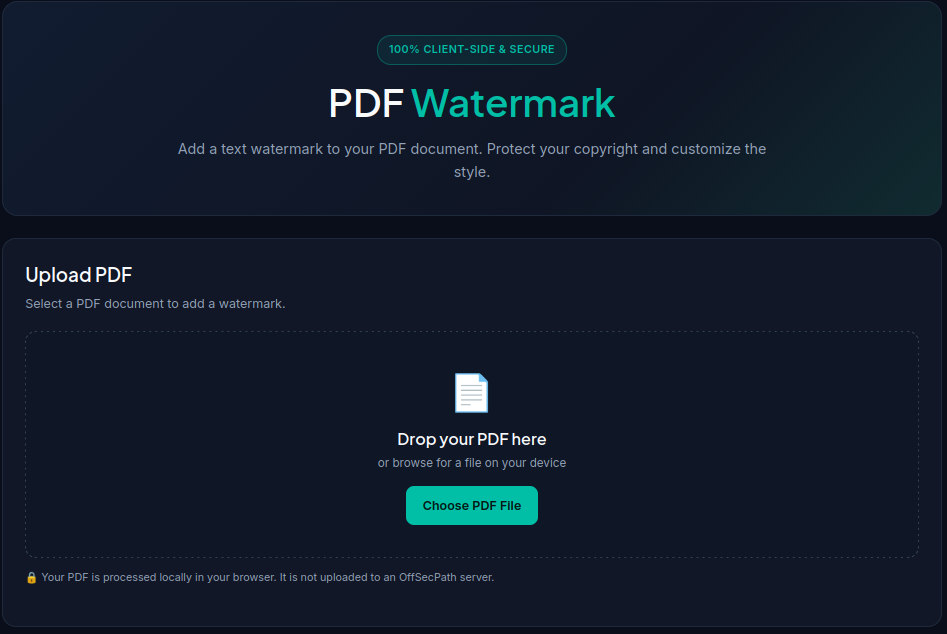
The OffSecPath PDF Watermark tool allows you to add text watermarks without installing desktop software.
Follow these steps:
- Open the OffSecPath PDF Watermark tool.
- Click “Choose PDF File” or drag and drop your PDF into the upload area.
- Enter the text you want to display as your watermark.
- Choose the watermark position. Select Tiled Diagonal to repeat the watermark across the page.
- Adjust the font size, color, and opacity.
- Click “Add Watermark & Save”.
- Download your watermarked PDF.
You can then open the saved document and check whether the watermark appears as expected.
PDF Watermark Customization Options
The OffSecPath tool provides several options to customize the appearance of your text watermark.
Custom Watermark Text
You can enter text that identifies the document or communicates its status.
For example:
- CONFIDENTIAL
- DRAFT
- SAMPLE
- © 2026 Your Company
- Your Business Name
Choose wording that clearly communicates why the watermark is present.
Tiled Diagonal Watermark
The Tiled Diagonal option repeats the watermark across the entire page at a diagonal angle.
This creates multiple visible instances of the watermark rather than placing text in only one location.
A tiled watermark can be useful for draft documents, confidential reports, and preview copies because removing every visible instance may require more effort.
However, it should not be considered tamper-proof document protection.
Font Size
The font size setting controls how large the watermark text appears.
A larger watermark is easier to notice, while smaller text can be less distracting.
For professional documents, choose a size that makes the watermark readable without unnecessarily covering important content.
Color
You can customize the watermark color to match your document or branding.
For example, a business might use its brand color, while a confidential report might use a neutral gray or red watermark.
Opacity
Opacity controls how transparent the watermark appears.
A watermark with lower opacity is less prominent, allowing readers to see more of the original document underneath it.
Higher opacity makes the watermark more visible but may interfere with readability.
Choose a balance that keeps the watermark noticeable without making the document difficult to read.
What Is the Difference Between a Single and Tiled Watermark?
A single watermark appears in a selected position on a page. In contrast, a tiled watermark repeats the text across the page.
| Feature | Single Watermark | Tiled Diagonal Watermark |
|---|---|---|
| Placement | One position | Repeated across the page |
| Appearance | Less prominent | More noticeable |
| Best suited for | Branding and ownership labels | Drafts and confidential documents |
| Page coverage | Limited area | Larger page area |
| Removal effort | May be easier to crop around | Requires addressing multiple instances |
For documents that need a clearly visible status label, tiled diagonal placement can be useful. For simple branding, a less prominent watermark may be more appropriate.
Is the OffSecPath PDF Watermark Tool Private?
Privacy matters when working with contracts, business reports, financial documents, and other sensitive files.
The OffSecPath PDF Watermark tool uses client-side JavaScript and the PDF-lib engine to process PDF files locally in your browser.
This means:
- Your PDF is processed on your device.
- The tool does not need to upload your document to a remote server for watermark processing.
- You can customize and save your watermarked document directly through the browser.
Because processing takes place locally, your original PDF content does not need to leave your device for the watermark operation.
For highly sensitive documents, you should still follow your organization’s security requirements and use a trusted device and browser.
Does a PDF Watermark Protect a Document Completely?
No. A watermark helps identify a document and may discourage unauthorized use, but it does not provide complete document security.
Someone with appropriate PDF editing software may be able to remove, modify, cover, or work around a watermark.
If your goal is to protect confidential information, consider additional measures such as:
- PDF password protection
- Access restrictions
- Secure document-sharing platforms
- Appropriate file permissions
- Digital signatures for document authenticity and integrity
A watermark works best as a visual identification measure rather than a replacement for encryption or access control.
Frequently Asked Questions (FAQs)
Is the OffSecPath PDF Watermark tool free?
Yes. The tool is free to use. You can add text watermarks to PDF documents without paying for a subscription.
Can I add my company name as a PDF watermark?
Yes. Enter your company name in the watermark text field. You can also use a copyright notice, personal name, or document label.
Can I add a CONFIDENTIAL watermark to a PDF?
Yes. Enter “CONFIDENTIAL” as your watermark text and select your preferred placement and styling options.
What is a tiled diagonal watermark?
A tiled diagonal watermark repeats the same text across the page at a diagonal angle. It provides broader visual coverage than a watermark placed in just one location.
Can I change the watermark color and transparency?
Yes. The tool allows you to customize the watermark color, font size, and opacity.
Does the PDF Watermark tool upload my files?
No remote upload is required for watermark processing. The tool uses client-side JavaScript and PDF-lib to process your PDF locally in your browser.
Can a PDF watermark prevent someone from copying my document?
No. A watermark can discourage unauthorized reuse and identify document ownership, but it cannot guarantee protection against copying, editing, or removal.
Do I need to install software to add a PDF watermark?
No. You can use the OffSecPath PDF Watermark tool directly in your web browser without installing additional software.
Related Free Tools
Explore more free PDF utilities on OffSecPath:
- PDF Watermark – Add customized text watermarks to PDF documents.
- PDF Compressor – Reduce PDF file size online.
- PDF Merger – Combine multiple PDF files into one document.
- PDF Splitter – Extract pages or split a PDF into smaller files.
- PDF Page Numbering – Add page numbers to PDF documents.
- PDF Metadata Viewer – Inspect available PDF document properties.
Visit the OffSecPath All Tools directory to explore more free online utilities.
Also Read
- How to Compress a PDF File Online for Free
- How to Merge PDF Files Online for Free
- How to Split a PDF Online for Free
- How to Add Page Numbers to a PDF Online for Free
Final Thoughts
Adding a watermark is a practical way to identify PDF documents, display ownership information, and communicate whether a file is confidential or still a draft.
The OffSecPath PDF Watermark tool makes the process simple with customizable text, color, font size, opacity, and tiled diagonal placement. Since the tool processes files locally in your browser, you can add watermarks without sending your PDF to a remote processing server.
Try the free OffSecPath PDF Watermark tool to customize and save your watermarked documents.