
Search engines use automated crawlers to discover and access pages across the internet. If you manage a website, you may want to guide these crawlers toward important sections while restricting access to certain areas.
A robots.txt file helps you communicate these preferences through a simple set of instructions. You can use it to specify which website paths crawlers should avoid, which paths they can access, and where search engines can find your XML sitemap.
Creating the file manually is possible, but incorrect directives can affect how search engines crawl your website. A robots.txt generator makes the process easier by helping you prepare the required rules without writing everything from scratch.
The OffSecPath Robots.txt Generator lets webmasters create robots.txt configurations for their websites. You can use it to prepare crawler directives and include your sitemap location.
What Is a Robots.txt File?
A robots.txt file is a plain-text document that provides crawling instructions to automated web crawlers.
Website owners typically place this file in the root directory of their domain. For example:
https://yourdomain.com/robots.txt
When a compatible crawler visits a website, it can check this file to understand which paths the website owner allows or disallows it from crawling.
The robots.txt file follows the Robots Exclusion Protocol, also known as the Robots Exclusion Standard. It uses directives such as User-agent, Disallow, Allow, and Sitemap to communicate crawling preferences.
For example, a basic robots.txt file might look like this:
User-agent: *
Disallow: /wp-admin/
Allow: /wp-admin/admin-ajax.php
Sitemap: https://yourdomain.com/sitemap.xml
This configuration applies the specified crawling rules to all user agents, restricts crawling of the WordPress administration directory, allows access to the admin AJAX file, and identifies the XML sitemap location.
Why Is Robots.txt Important for SEO?
A properly configured robots.txt file can help you manage how search engine crawlers access your website.
1. Guide Search Engine Crawlers
Large websites can contain thousands of URLs, including administrative paths, internal search results, duplicate pages, and other sections that may not need regular crawling.
Robots.txt directives let you communicate which areas crawlers should avoid and which areas they can access.
This can help search engines focus their crawling activity on the sections that matter to your website.
2. Manage Crawler Access to Unnecessary Paths
Websites often contain directories and URLs that do not provide useful search content.
For example, a WordPress website may have an administrative directory at /wp-admin/. A robots.txt rule can instruct compliant crawlers not to crawl that path.
However, robots.txt is not an access-control mechanism. It does not prevent visitors or malicious bots from accessing public URLs. Use proper authentication and server-side permissions to protect private information.
3. Help Search Engines Discover Your XML Sitemap
An XML sitemap provides search engines with information about the URLs you want them to discover.
You can include its location in robots.txt using the Sitemap directive.
For example:
Sitemap: https://yourdomain.com/sitemap.xmlThis gives compatible crawlers another way to discover your sitemap without requiring them to guess its location.
A sitemap can help search engines discover URLs, but including it in robots.txt does not guarantee faster indexing.
4. Support Technical SEO Management
Robots.txt is one part of technical SEO. Along with XML sitemaps, canonical URLs, internal links, and proper indexing controls, it helps you manage how search engines interact with your website.
A well-maintained robots.txt file can reduce unnecessary crawling of selected paths while leaving important website content accessible.
What Is a Robots.txt Generator?
A robots.txt generator is an online utility that helps you create the text instructions used by web crawlers.
Instead of manually remembering every directive and formatting rule, you can use a generator to prepare a robots.txt configuration for your website.
The OffSecPath Robots.txt Generator is designed to simplify this process by helping webmasters create crawler rules and sitemap declarations.
You can access it here:
OffSecPath Robots.txt Generator
How to Generate a Robots.txt File Online
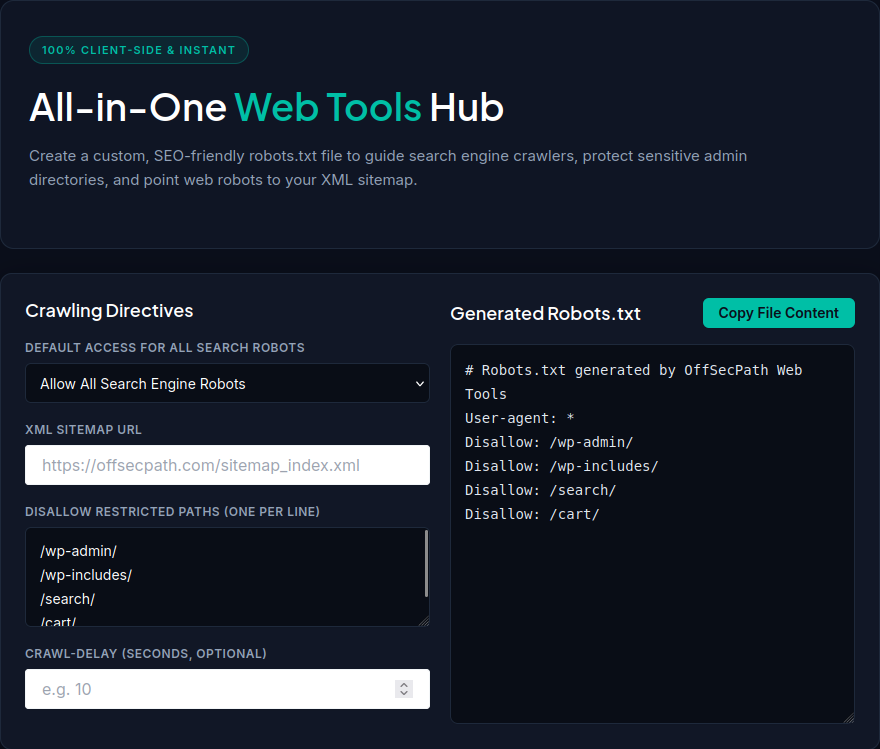
Follow these steps to create your robots.txt file using OffSecPath:
- Open the OffSecPath Robots.txt Generator.
- Configure the crawler rules you want to include.
- Add the directories or paths that you want crawlers to avoid.
- Include any paths that should remain accessible where necessary.
- Enter your XML sitemap URL.
- Generate the robots.txt configuration.
- Review the generated rules before using them on your website.
- Copy the output and save it as a plain-text file named
robots.txt.
Before uploading the file, verify that the generated directives match your website structure and SEO requirements.
Understanding Common Robots.txt Directives
A robots.txt file uses several directives to communicate crawling preferences.
Here are four commonly used directives.
User-agent
The User-agent directive identifies the crawler to which a rule applies.
For example:
User-agent: *The asterisk (*) represents all user agents. This means the following rules apply to all crawlers that respect the Robots Exclusion Protocol.
You can also specify an individual crawler:
User-agent: GooglebotThis identifies Google’s main web crawler.
Disallow
The Disallow directive tells a compatible crawler not to access a specified path.
For example:
User-agent: *
Disallow: /wp-admin/
This instructs crawlers covered by the rule to avoid URLs beginning with /wp-admin/.
You can also restrict a different directory:
Disallow: /private/Remember that Disallow does not password-protect a directory or prevent someone from visiting its URLs directly.
Allow
The Allow directive identifies a path that crawlers can access, including situations where a broader Disallow rule would otherwise restrict it.
For example:
User-agent: *
Disallow: /wp-admin/
Allow: /wp-admin/admin-ajax.php
This configuration disallows crawling of the WordPress administration directory while allowing the specified AJAX file.
Sitemap
The Sitemap directive provides the location of your XML sitemap.
For example:
Sitemap: https://yourdomain.com/sitemap.xmlReplace the example address with your actual sitemap URL.
You can declare a sitemap location in robots.txt to help compatible crawlers discover it.
Example Robots.txt Configurations
Different websites may need different crawler rules. The following examples demonstrate common configurations.
Example 1: Basic Website Configuration
A simple website might use:
User-agent: *
Allow: /
Sitemap: https://yourdomain.com/sitemap.xml
This configuration allows all paths by default and provides the sitemap location.
Example 2: WordPress Website
A WordPress website may use a configuration such as:
User-agent: *
Disallow: /wp-admin/
Allow: /wp-admin/admin-ajax.php

Sitemap: https://yourdomain.com/sitemap_index.xml
This example restricts crawling of the WordPress administration directory, allows the AJAX endpoint, and declares the sitemap.
The sitemap address is an example. Your actual sitemap URL depends on your WordPress SEO configuration.
Example 3: Restricting a Specific Directory
If you have a public directory that you do not want compliant crawlers to access, you can specify it:
User-agent: *
Disallow: /temporary/
Disallow: /staging/

Sitemap: https://yourdomain.com/sitemap.xml
This instructs compatible crawlers to avoid the specified paths.
Do not rely on these directives to protect staging websites or confidential files. Use authentication or server-level restrictions for that purpose.
Example 4: Rules for a Specific Search Engine Crawler
You can also define rules for a particular crawler.
For example:
User-agent: Googlebot
Disallow: /temporary/

User-agent: *
Allow: /

Sitemap: https://yourdomain.com/sitemap.xml
This example provides a specific rule for Googlebot and a separate rule for other crawlers.
When defining multiple user-agent groups, make sure you understand how the target crawler selects and applies matching groups.
Where Should You Upload Your Robots.txt File?
Your robots.txt file should normally be placed in the root directory of your website.
For example, if your domain is:
The robots.txt file should be accessible at:
https://yourdomain.com/robots.txt
For a WordPress website, you may be able to upload the file through your hosting control panel or file manager.
A typical process looks like this:
- Log in to your hosting control panel.
- Open the File Manager.
- Navigate to your website’s document root directory, commonly named
public_html. - Upload the
robots.txtfile. - Open
https://yourdomain.com/robots.txtin your browser. - Confirm that the file displays your intended directives.
The exact document root directory may differ depending on your hosting provider and website configuration.
If WordPress, an SEO plugin, or another system already manages your robots.txt output, check the existing configuration before uploading another file. Avoid creating conflicting configurations.
Common Robots.txt Mistakes to Avoid
A small mistake in robots.txt can affect how crawlers access important website sections.
Here are some common problems to watch for.
Blocking the Entire Website
One of the most significant mistakes is accidentally blocking all crawlers.
For example:
User-agent: *
Disallow: /
The slash after Disallow instructs matching crawlers not to crawl any path on the website.
If you publish this rule on a live website, search engine crawlers may stop accessing its pages.
Always review your rules before uploading the file.
Blocking Important Website Content
Some website owners accidentally disallow directories containing important pages, images, scripts, or other resources.
Before restricting a path, check whether it contains content or resources that search engines need to access.
Treating Robots.txt as a Security Tool
Robots.txt does not provide authentication or prevent unauthorized access.
A disallowed URL may still appear in search results if search engines discover it through other links or sources.
Never use robots.txt as the only protection for private files, administrative systems, or confidential directories.
Using the Wrong Sitemap URL
An incorrect sitemap address makes the Sitemap directive less useful.
Check your website’s actual XML sitemap location before adding it to the robots.txt file.
For WordPress websites using Yoast SEO, the sitemap index commonly uses:
https://yourdomain.com/sitemap_index.xml
However, always verify the address on your own website.
Forgetting to Check Existing Rules
Before changing robots.txt, inspect your current file.
Your hosting provider, WordPress installation, or SEO plugin may already provide a robots.txt configuration.
Replacing an existing file without reviewing its contents can remove useful rules or introduce unintended restrictions.
Does Robots.txt Prevent Google From Indexing a Page?
No. Robots.txt primarily controls crawling, not indexing.
If a page is blocked by robots.txt, Google may still discover its URL through external links or other sources. In some situations, Google can display the URL in search results without accessing its content.
If you want to prevent a page from appearing in Google’s search results, use an appropriate indexing control, such as a noindex directive, and make sure search engines can crawl the page to see that instruction.
This distinction is important:
- Robots.txt controls whether compliant crawlers can access specified paths.
- Noindex tells search engines not to include a page in their search results.
- Authentication and access controls restrict who can access protected content.
These mechanisms solve different problems and should not be treated as interchangeable.
How to Check Whether Your Robots.txt File Works
After publishing your robots.txt file, verify that it is available and contains the intended rules.
You can follow these steps:
- Open your website’s
/robots.txtaddress in a browser. - Confirm that the file loads successfully.
- Review the User-agent groups and their associated directives.
- Check that important website sections are not accidentally blocked.
- Verify that the sitemap URL is correct.
- Use the appropriate search engine tools to test how its crawler interprets your rules.
Google Search Console provides a robots.txt report for supported properties, allowing website owners to review the file and identify certain crawling configuration issues.
For more information, consult Google’s official documentation on robots.txt specifications.
Frequently Asked Questions
What is a robots.txt file used for?
A robots.txt file provides instructions to compatible web crawlers about which paths they should or should not crawl on a website. It can also identify the location of an XML sitemap.
Where should I place my robots.txt file?
Place the file in the root directory of your website. For example, a website at https://yourdomain.com should normally make its file available at https://yourdomain.com/robots.txt.
Is a robots.txt file necessary for SEO?
Not every website requires a customized robots.txt file. However, it can be useful for managing crawler access, restricting unnecessary paths, and declaring your sitemap location.
Does robots.txt prevent pages from appearing on Google?
No. Robots.txt controls crawling rather than guaranteeing removal from search results. Google may still discover and display a blocked URL if it finds information about that URL elsewhere.
Can robots.txt protect private files?
No. Robots.txt is publicly accessible and does not prevent users or malicious bots from opening public URLs. Use authentication and proper access controls to protect confidential files and directories.
What does User-agent: * mean?
The asterisk represents all crawlers that follow the Robots Exclusion Protocol. Rules within the corresponding group apply to those crawlers.
What does Disallow: / mean?
It instructs matching crawlers not to crawl any path on the website covered by that rule. Use it carefully because it can block crawling across the entire site.
Should I include my XML sitemap in robots.txt?
Including your sitemap location is a useful way to help compatible crawlers discover it. Use the correct, publicly accessible sitemap URL.
Can I have different robots.txt rules for Googlebot and other crawlers?
Yes. You can create separate User-agent groups for individual crawlers and define rules for each group. Make sure the configuration follows the relevant crawler’s robots.txt interpretation.
Can I create a robots.txt file without coding?
Yes. You can use an online robots.txt generator to prepare the directives without manually writing the entire file. The OffSecPath Robots.txt Generator provides a convenient way to create your configuration.
Related Free Tools
Explore more free utilities on OffSecPath:
- Robots.txt Generator : Create robots.txt configurations for your website.
- HTML Entity Encoder and Decoder : Encode and decode HTML character references.
- Base64 Encoder and Decoder : Convert text to Base64 and decode Base64 strings.
- JSON Formatter : Format JSON data for easier reading.
- JSON Validator : Check JSON syntax and identify invalid input.
Browse the All Tools directory to discover more free online utilities.
Also Read
Explore more guides on OffSecPath:
- What Is a JSON Formatter and Validator? How to Format and Validate JSON Online
- HTML Entity Encoder and Decoder Online for Free
- Base64 Encoder and Decoder Online for Free
Final Thoughts
A robots.txt file is a useful part of website management and technical SEO. It gives website owners a straightforward way to communicate crawling preferences, restrict selected paths, and provide search engines with an XML sitemap location.
Creating the file is only the first step. You should also review the generated directives, verify the sitemap address, and make sure important website content remains accessible to search engine crawlers.
The OffSecPath Robots.txt Generator makes it easier to prepare a robots.txt configuration without manually writing every directive.
Create your file, review the rules, and publish it in your website’s root directory to help compatible crawlers understand your preferred crawling instructions.